Adding Objects
Realtime Landscaping includes many powerful objects to help you visualize your landscape design ideas.
To add a new object:
- Click the Object Category Tab, found near the top of the screen, which contains the object you want to add. For example, to add a plant click the Landscape tab.
- Click the button of the object you want to add to your landscape design.
- Modify the default properties if desired.
- Follow the dynamic help instructions at the bottom of the screen to add the object.
After you add an object to your design, it will remain selected for editing. For details on editing, see Editing Objects.
For information about object default settings, see Default Properties.
Adding Shape-Based Objects
Many objects are defined by a shape that you draw by placing points. Each point can use a different curve type, letting you combine straight edges, smooth curves, and precise arcs within the same shape.
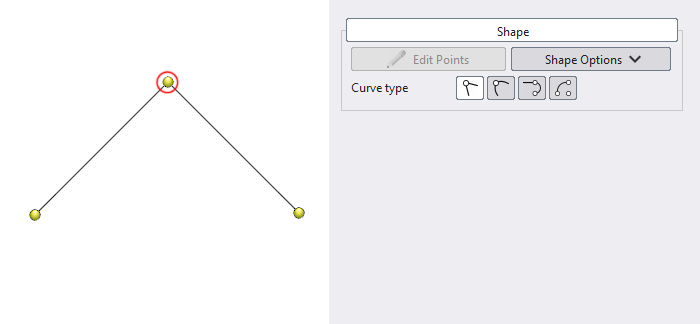
Straight
Straight creates a sharp corner at the point, and the edges leading into and out of it are straight line segments.
Spline
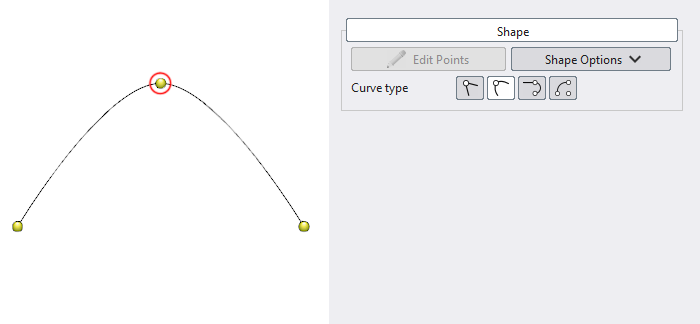
Spline creates a smooth curve that's automatically shaped using the surrounding points. It's a quick way to draw organic, flowing outlines which can be adjusted simply by moving the points.
Tangent Arc
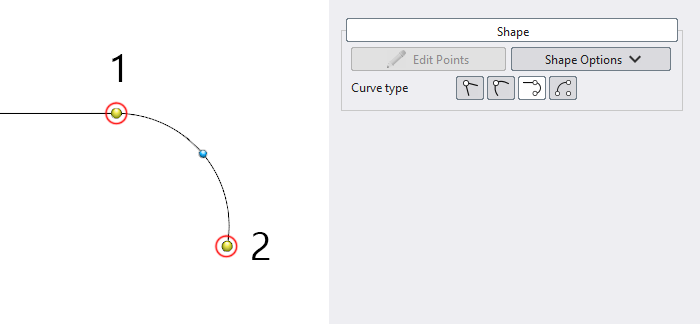
Tangent Arc creates a circular arc that starts tangent to the previous edge, producing a smooth transition at the start of the arc.
3-Point Arc
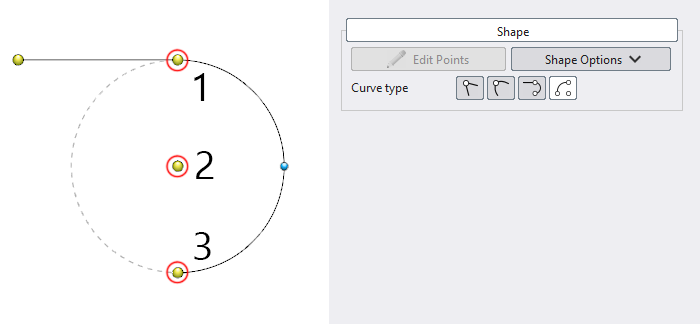
3-Point Arc creates a circular arc by defining three points: the start point (1), the center point (2), and the end point (3). This is useful when you need to create an arc with a precise center and radius.