Rotating Objects

To rotate an object that is not currently selected:
- Click the Rotate tool that appears to the left of the screen. Or press the R key.
- Click an object in your design to select it.
- Click the object again, but this time hold down the left mouse button as you move your mouse in a circular motion to rotate the object. Or press Enter to rotate the object manually.
To rotate one or more selected objects:
- Move your mouse over one of the selected objects that you want to rotate.
- Click and hold the left mouse button, then move your mouse in a circular motion to rotate all selected objects. Or press Enter to rotate the selected objects manually.
When rotating multiple objects at once, they will be rotated about their common center, not their individual centers.
While you are rotating, the number of degrees that the object is revolving will be shown at the very bottom of the screen.
Tip: Objects can also be rotated directly without using the Rotate tool. For details, see Moving Objects.
Rotating a Model
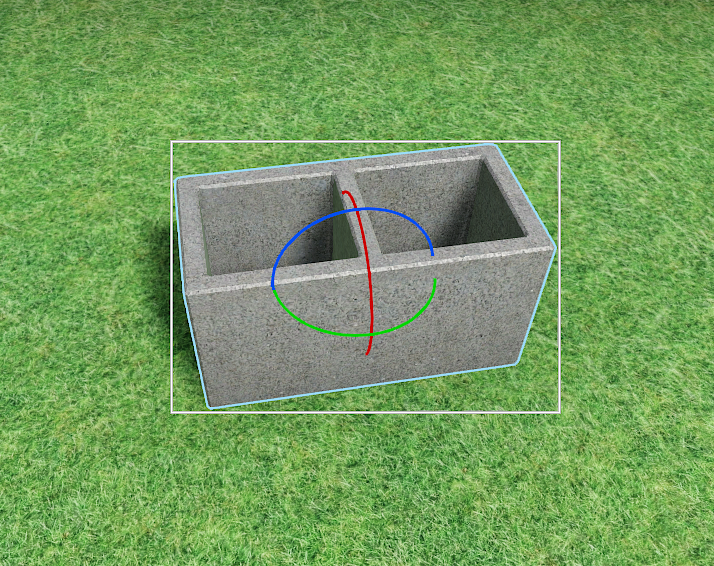
When a single model is selected, the Rotate tool shows three colored rotation arcs around the model (a standard CAD-style rotation tool).
-
Red arc = X axis
-
Blue arc = Y axis
-
Green arc = Z axis
To rotate about an axis, click and drag the arc for that axis. As you drag, the model rotates around its center.
Tips:
-
If an arc is hard to select, zoom in or slightly change your view angle so the arc is easier to see.
-
If you rotate the wrong way, undo (Ctrl+Z) and try dragging in the opposite direction.
-
By default, rotation is relative to the world axes. Hold Ctrl to rotate relative to the model's local axes (the model's own orientation).
Rotate Model Dialog
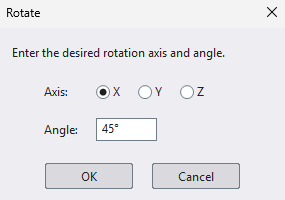
To rotate by an exact axis and angle, press Enter to open the Rotate Model dialog.
-
Axis - Choose the rotation axis (X, Y, or Z).
-
Angle - Enter the rotation angle. Angles are in degrees by default, but you can also enter:
-
Rise/Run (for example, 5/12 = 22.62°)
-
Slope percent (for example, 50% = 26.57°)
-