Saving and Restoring Viewpoints
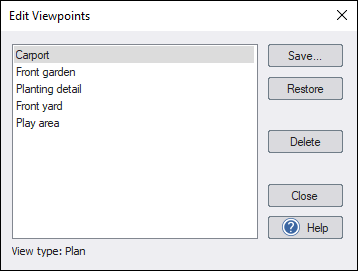
Specific viewpoints can be easily saved and restored using the Edit Viewpoints command. This is useful when taking pictures of your design or quickly returning to a view you want to show a client.
To save the current viewpoint
-
From the View menu, click Edit Viewpoints. Or press V.
-
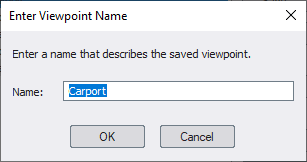
Click Save. The following dialog will appear:
-
Type a name that describes the viewpoint, and then click OK. If you enter the name of an existing viewpoint, it will be replaced.
-
Click Close.
To restore a saved viewpoint
-
From the View menu, click Edit Viewpoints. Or press V.
-
Select the viewpoint you want to restore, and then click Restore.
-
Click Close.
Saving and restoring time of day and north direction
By default, restoring a viewpoint changes only the view type (Plan or Perspective) and camera view. You can optionally save the time of day and north direction angle with a viewpoint so they are restored as well.
- To save time and north direction with a viewpoint: In the Save Viewpoint dialog, select Save current time and north direction before clicking OK.
- To restore time and north direction: Restore that viewpoint normally. If time and north direction were saved with it, they will be restored along with the camera view.
- If the option is not selected when saving: Restoring the viewpoint will leave the current time of day and north direction unchanged.