Export to File Settings
When exporting an image to a file, the following dialog will appear:
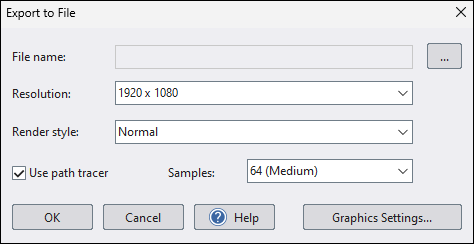
File name
Destination file path and image type.
Resolution
Size of the new image in pixels. Higher resolutions will produce larger and higher quality files.
Render style (perspective view)
Optionally adds an artistic effect to the image, such as colored pencil, painting, or watercolor.
Use path tracer (perspective view)
The Path Tracer improves realism by producing more natural lighting and more accurate reflections. It simulates how light bounces between surfaces, which can dramatically improve shaded areas and material appearance. Because these calculations are intensive, enabling the path tracer can substantially increase render time.
Set Samples to control the image quality:
-
More samples = cleaner image with less noise, but slower rendering.
-
Fewer samples = faster rendering, but more noise.
-
Auto (recommended) = automatically chooses a good sample count based on the image resolution.
Graphics Settings (perspective view)
Click to access the Graphics Settings dialog.
Batch Export (perspective view)
Applies to:  Plus
Plus  Pro Architect
Click to export multiple screenshots at once using your saved viewpoints. This option is available when exporting the Perspective view and when taking a screenshot during a Realtime Walkthrough.
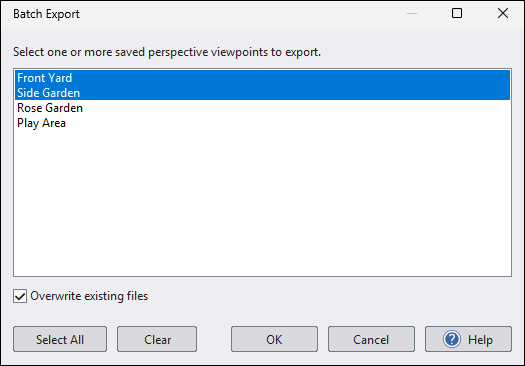
Select one or more saved viewpoints, and then click OK to export each one. Hold Ctrl while clicking viewpoints to keep your current selection, or hold Shift to select a range. The program remembers your previous viewpoint selections, and each exported image uses the file name you specified followed by a dash and the viewpoint name.
Check Overwrite existing files to overwrite any existing files without prompting.